
Guide Metadata Module
This guide explains how to set up the Metadata Module so you can display the Image/Image Variations/Slideshow/Mediaflow/YouTube modules (latest version in the Marketplace) in any of our news modules. In other words, if you sometimes have an article that displays an image and sometimes one that displays a YouTube video, but you want the listing to always appear the same way—with an image—regardless of whether it’s from an image or a video.
In this case, we’ll show an example using YouTube, but you could also add a Slideshow to the template in the same way.
Step 1. Set up a metadata module
Go to the page or archive where you want to use this metadata module. For example, the subpage where you have your news archive.
Here's how:
1. Select Properties -> Metadata. Click Add Metadata Field.
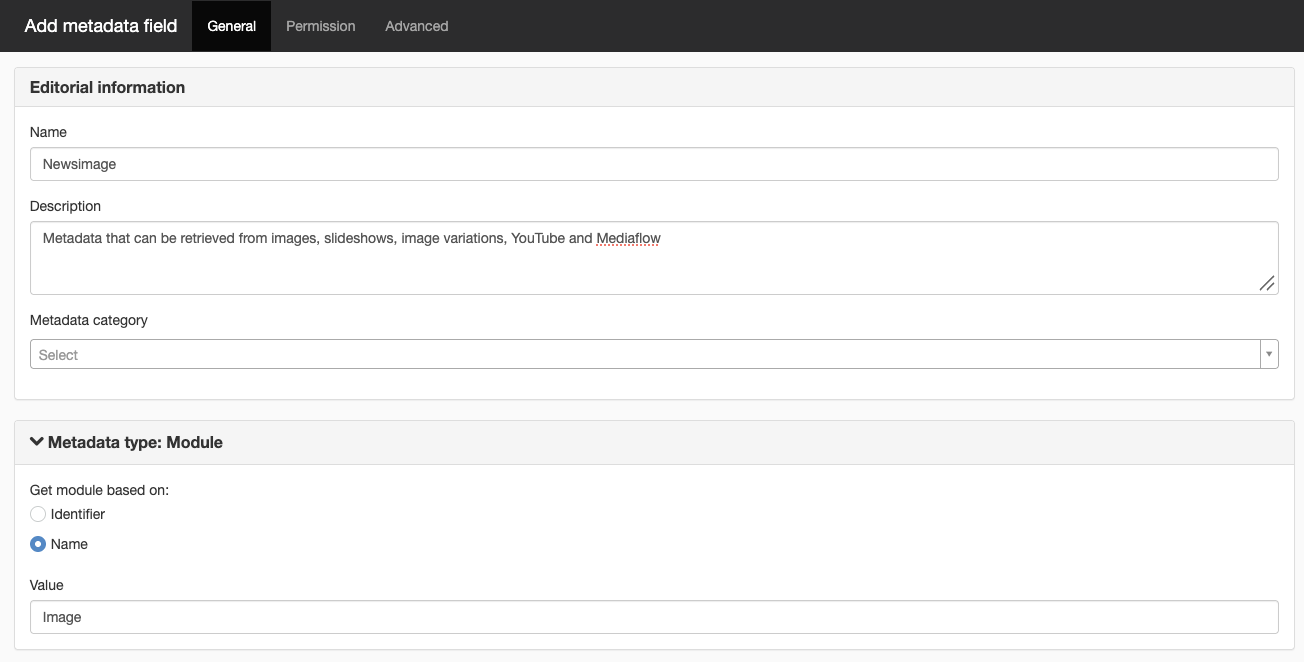
2. Add a metadata field of the Module type. Enter a name and description, and select the option to retrieve the module based on its name.

One tip is to use Identifier if you’re working with different languages. However, if you’re applying this change to an existing archive, it’s definitely easiest to use Name since that’s how we’ve historically worked.
If you choose “Identifier,” you should also enter the value you enter here under Technical Identifier on the module added to the template.
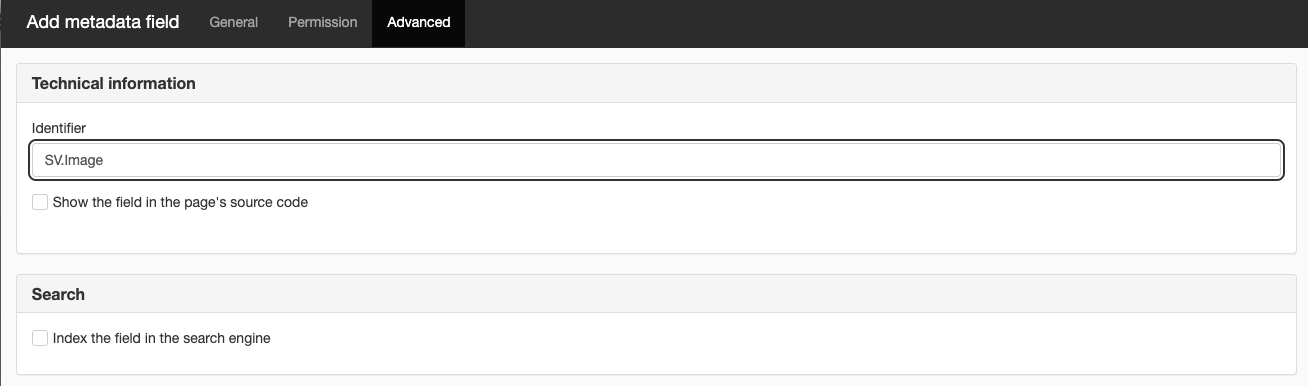
3. On the Advanced tab, enter "Identifier -> SV.Image"
4. Save and publish.
Step 2. Add a module to the template
1. Go to the news template and add, for example, the YouTube module to the content area.
2. Right-click the module, rename it, and call it "Image"
If you had selected the Identifier option, you would instead have had to right-click on the module and select Settings -> Technical Information -> Identifier. Here, enter the value you specified in step 1, such as "Product Image."
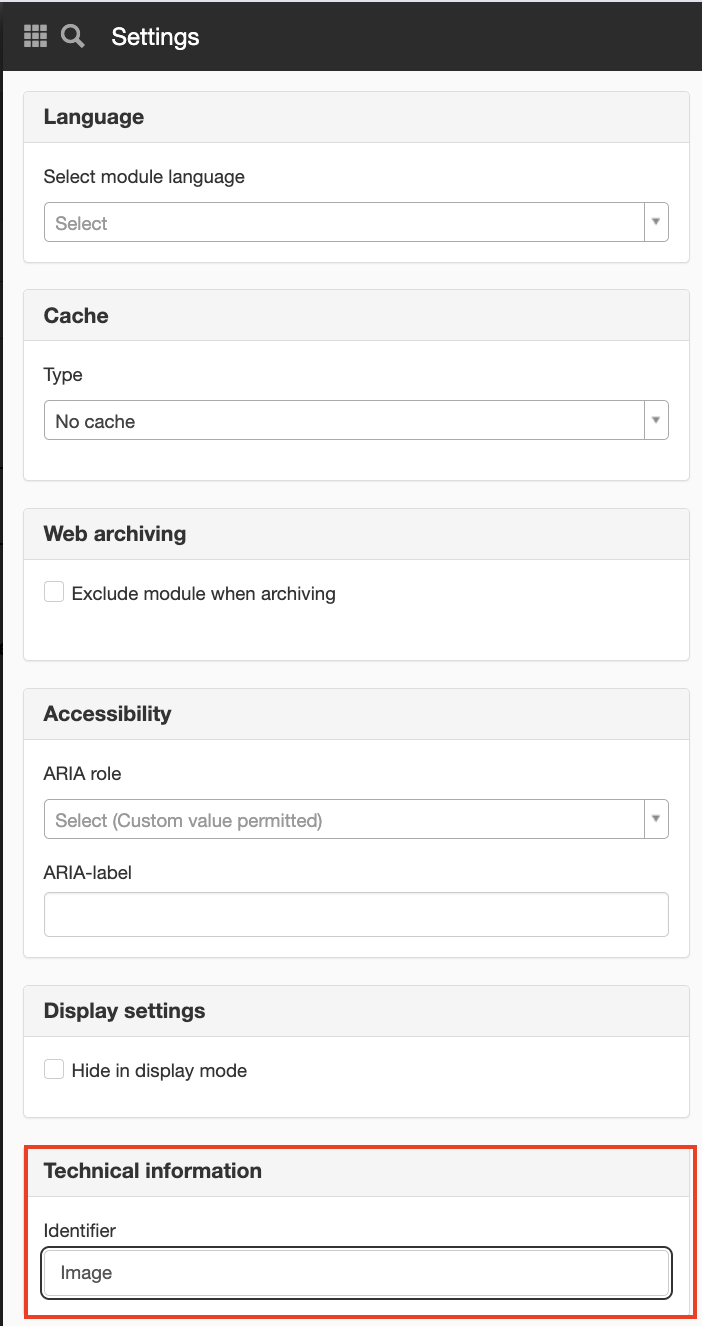
Step 3. Create an article using the new template
Now create an article using the new news template that includes the YouTube module. The template will then contain both an image module and a YouTube module. Remove the module you won’t be using in this particular article.
The news feed will then display an image in the list, regardless of whether the article contains an image module or a YouTube module.

The page published:

help.sitevision.se always refers to the latest version of Sitevision