

help.sitevision.se always refers to the latest version of Sitevision
The Colors Panel
Here you can add colors. These are the colours that can be selected in the dialogue boxes where the user can choose colors. Here, it is a good idea to add your company's profile colours to create a consistent look for your website.
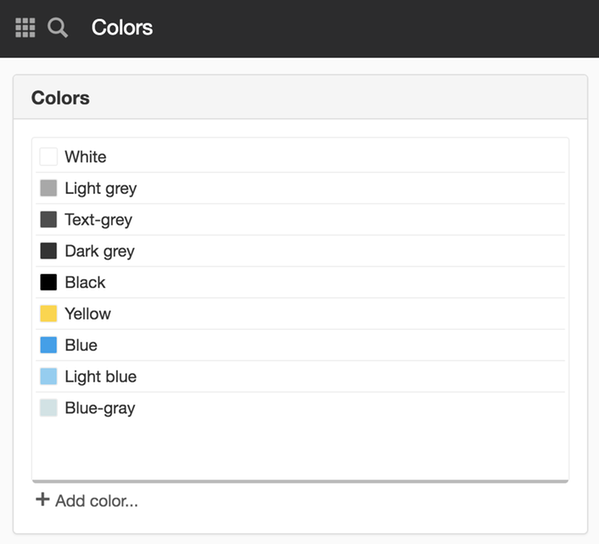
Colors
The list presents the different colours. The names and order shown here are the same as those shown in the different modules that use the colours.
Add color
At the bottom is a link Add color to create new colour.
Edit color
To change a colour, select the colour from the list. Double click on the color or click the Select colouricon. A new view appears, where you can change the name or choose a different color. Learn more about choosing colours under the Color picker.
Sort colours
To sort colours, select a color, and then click on the icon to move to the right in the list. Drag and drop the color to the place in the list where you want it.
You cannot delete a colour once it has been added to the website. Instead use permission control to show or hide colors for different users.
This function requires you to have “Manage website settings” and "Manage colours" permissions.
The page published:
 Print page