

Groups
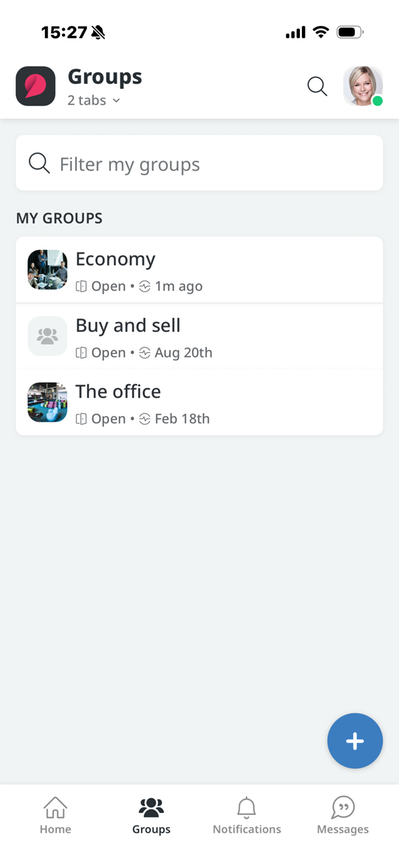
Here you can find the groups you belong to and all the groups available on the intranet right from your phone. When you tap on a group, you’ll see information about it under the tabs. There, you can see whether the group is open, moderated, or closed, as well as how many members it has. You’ll also find the group’s Feed and File Archive here.
You can also choose to open the group in your web browser to access all the features associated with groups. To do this, click on the tabs below the group name and then click the three dots in the upper-right corner. The “Open in Browser” option will then appear.
My Groups
Under the "My" tab, you can see which groups you are a member of. The groups are sorted by update date, which means that the groups with recent activity will appear at the top.
If a new message has been posted in a group, it will be marked with a red circle on the group image.
If you’re a member of many groups, you can quickly filter your groups using the search bar.
All Groups
Under the “All” tab, you’ll see all the groups available on the intranet. The groups are sorted alphabetically. You can also search for a group’s name in the search box at the top to go directly to it.
Create a post in the group
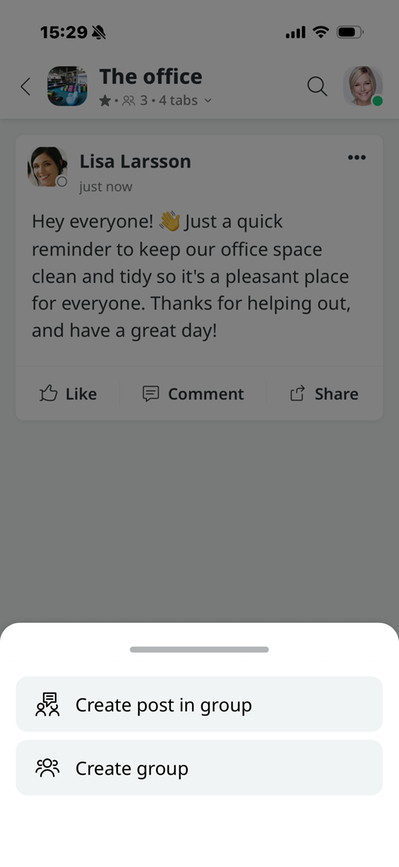
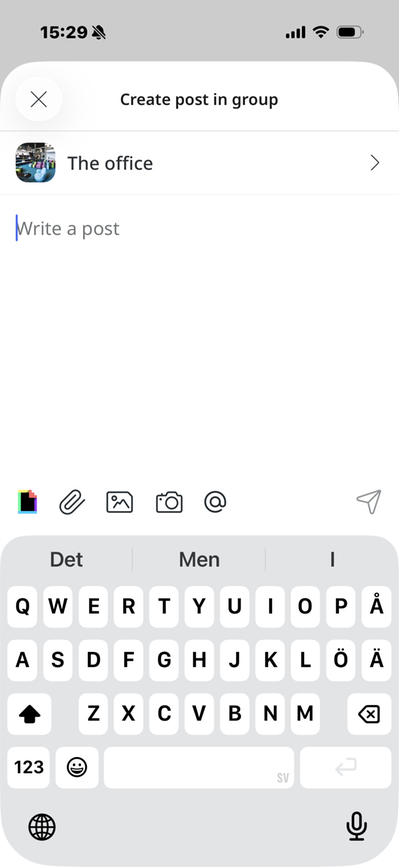
To create a post in the group, click the plus button and then select "Create Post in Group." The group you're in will be preselected, but you can easily choose to publish the post in a different group using the dropdown menu.
Then write your post and click the arrow in the lower-right corner to publish it. Learn more about publishing, editing, and deleting posts.
Joining and Leaving Groups
When you enter a group, you can see on the group page whether it is an Open group, a Moderated group, or a Closed group. If it is an Open group, click on the tabs. A "Join Group" button will then appear, allowing you to become a member. If the group is moderated or closed, the group administrator must add you before you can become a member.
If you no longer want to be a member of the group, click “Leave Group” in the three-dot menu at the top right. You’ll then be asked to confirm that you want to leave the group.
Group Members
You can find the group’s members on the group page under the tabs below the profile picture. There, you can also see how many members the group has. If you click on “Group Members,” a list will open showing the names of all members. This page also has a search function if you want to quickly find a member. The person with a wrench icon next to their profile picture is the administrator, whom you can easily contact from there if, for example, you’d like to be invited to the group.
Contact a Group Member
Clicking on a person in the list of members takes you to their contact card, where you can see their profile picture, name, title, phone number, and email address.
Manage the group
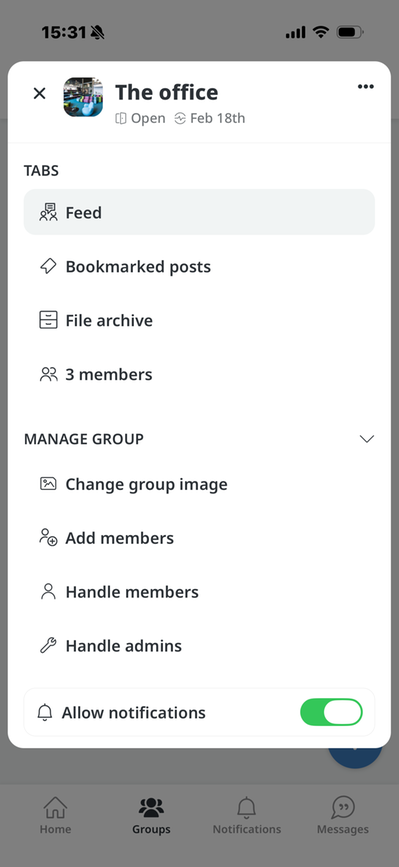
If you’re an administrator of the group, there are a few settings you can adjust:
- Change group image
- Add members
- Handle members
- Handle admins
- Allow notifications on or off (settings for everyone)
The page published:
 Print page
help.sitevision.se always refers to the latest version of Sitevision