

Home
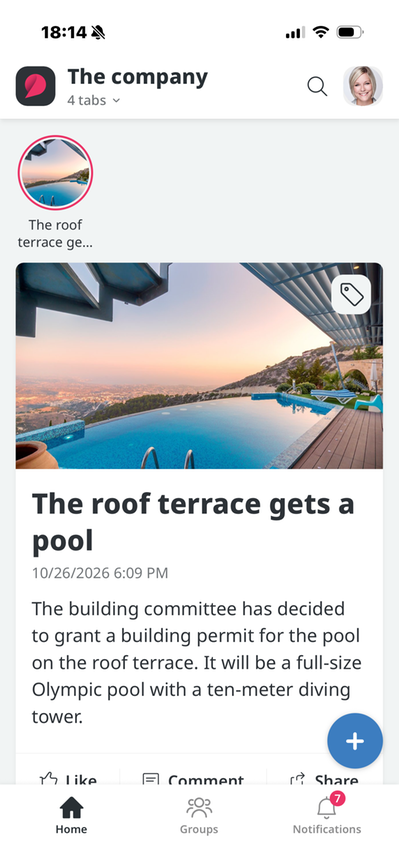
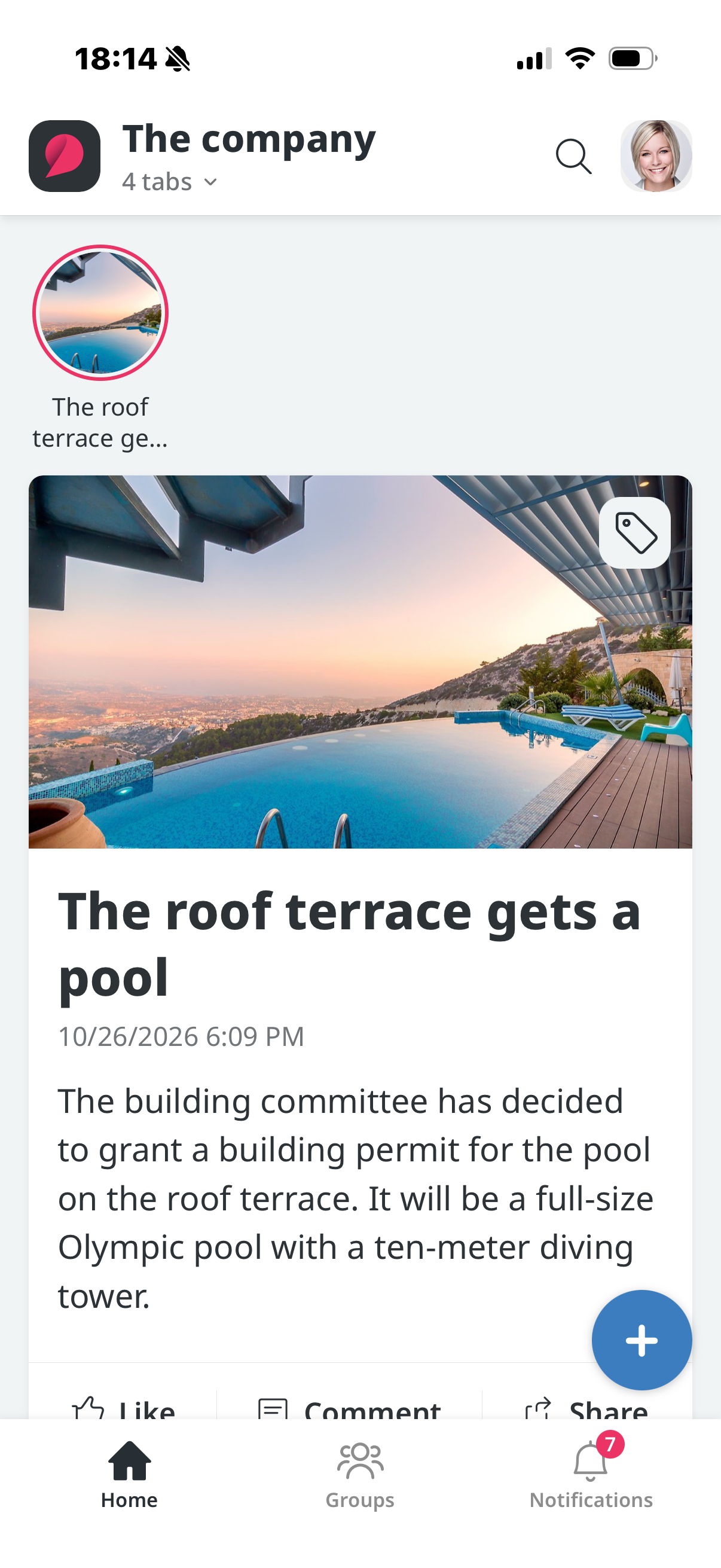
Once you've logged in to the app, you'll be taken to the home screen, which displays posts and the news archives that are visible in the app. You can choose to sort content by Posts or News, or view the Entire Feed. You can select this option from the small menu below the website name (in this case, Company AB).
News
News from the selected archive will appear in this feed if you select News or Full Feed. For each news item in the app, you can like, comment, add photos, and share.
You can personalize your news feed by setting up a "Label" user field under News Feed in the app settings.
Posts in the activity feed
The posts that appear are the same ones you see in the web version. The activity feed shows posts from groups and contacts. For each post in the app, you can like it, comment on it, attach photos, and share it.
Create a Post
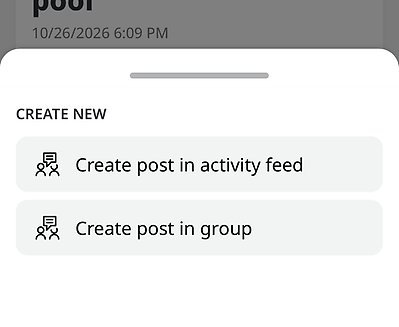
To create a post, tap the plus button located just above the menu bar at the bottom, then select “Create Post” in the activity feed or in a group. You can then publish your post.
Manage Posts
You can choose to edit, hide, or delete your post by clicking the menu with the three dots.
Push Notifications for News
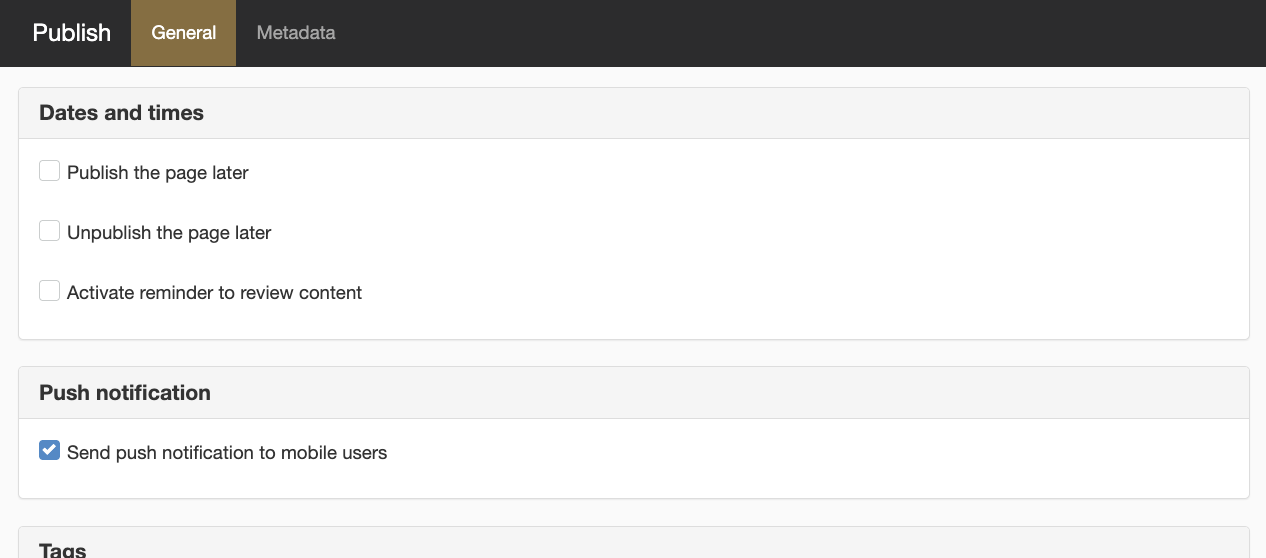
When a news item or article is published on the intranet website, you can choose to send a push notification to intranet app users. To do this, check the box labeled "Send push notifications to mobile users" before publishing the news item.
Mobile users will receive a notification directly in the app informing them that a new article has been published. The user can select “View Article” to go directly to the news story, or “Cancel” to close the dialog box.
Dark Mode
The app comes in two themes. These match the settings on your phone. You can choose to run it in dark mode or in light mode.
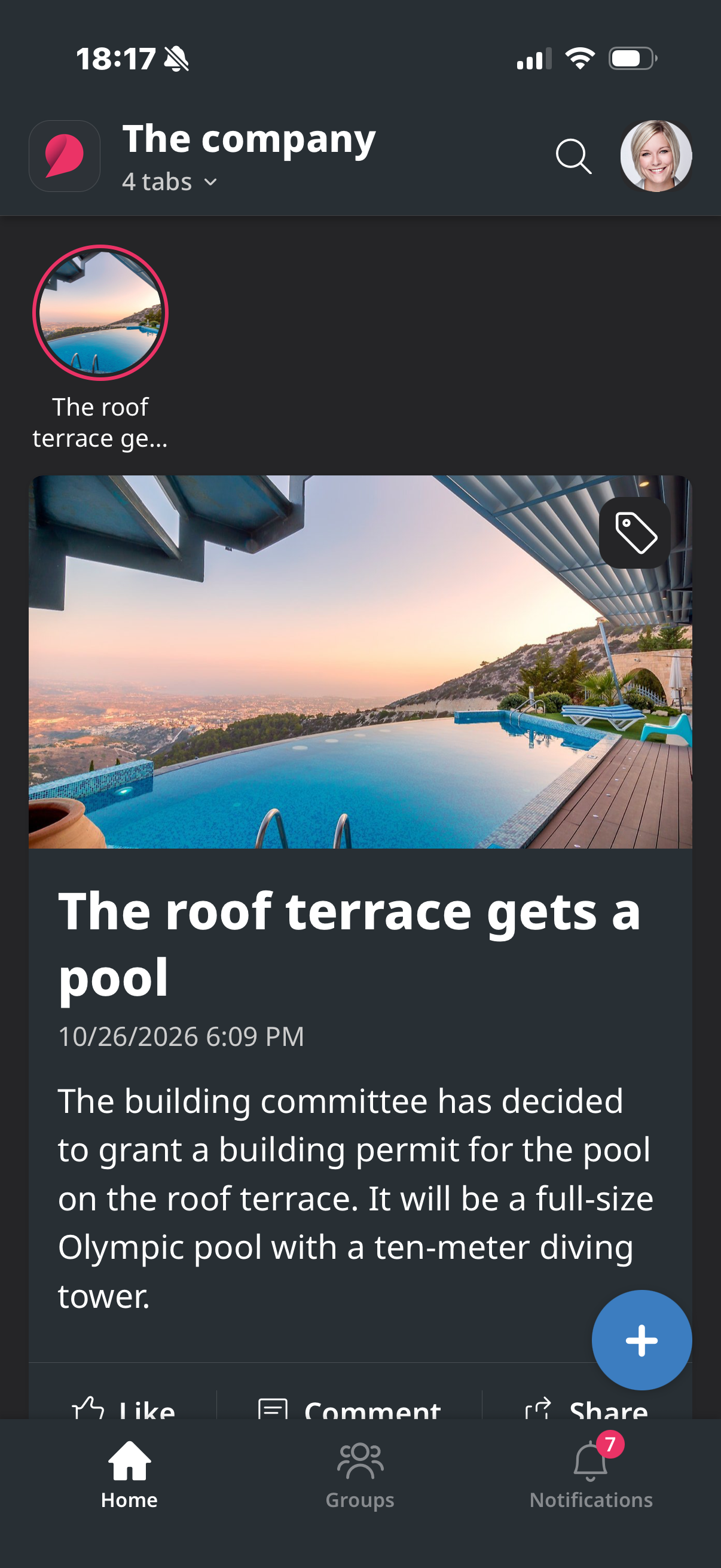
Dark mode
Light mode
Your Own Home Page Instead of the Default "Home" Button
If you want your own home page for the intranet on the Home icon, you can set it up. In that case, this home page—which displays news and the activity feed—will not appear under the Home icon; instead, it will appear under an icon labeled “For You.”
Here’s how:
- Go to the "Add-ons" menu option under the cube menu
- Search for the add-on “mobile-backend” or locate it in the list.
- Click on the active version of the “Sitevisions Intranet App - RESTApi” add-on.
- In the upper right corner, you’ll find a “Settings” button.
- Select the "Functionality" tab and check the box for "Enable Web View mode for content"
- This will display another checkbox labeled "Custom Web View Start Page (Home Tab)." Check this box and select the page you want to use as the start page for the intranet app.
You might need to customize the web page a bit for the mobile app. For example, you probably don’t want duplicate profile pictures and a search button.
In that case, you can create a rule with the criterion type “Sitevision intranet app” to set up a view for the mobile app where you remove the page header, etc.
Here’s how:
1. Go to Website Settings -> Personalization - Rules. Click Add Rule.
2. Configure the following settings:
- Give it a name ("e.g., Mobile App")
- Check the "Show in menu" box,
- Add a criterion and select the criterion type Sitevision intranet app (give it a name, such as "mobile app")
- Check "Evaluate on every page view"
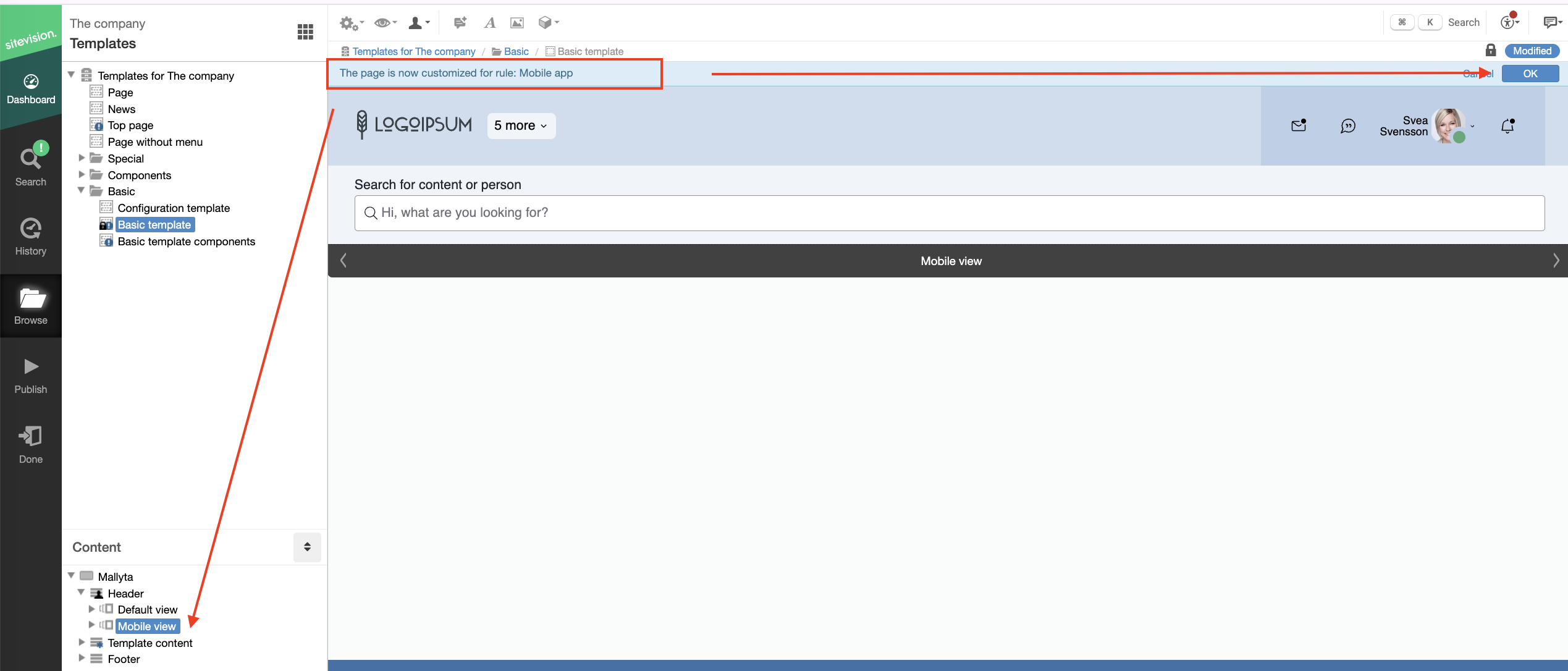
3. Go to the base template, and on the layout where the header is located, right-click and select “Views -> Permit Views.” Now the entire header is in a standard view.
4. Right-click on the same layout and select "Views -> Create View." Give it a name, such as "Mobile View." Here, you can remove any content you don’t want to include in the mobile view.
5. Now you need to link this view to the rule you created (“Mobile App”). Click the “Apply Rule” icon in the toolbar and select the “Mobile App” rule. Click the mobile view under “Content,” then click OK.
When you click the Home button, your designated mobile view start page will appear:
And when you click the "For You" icon, the default home page appears, displaying posts and the news archives that are visible in the app.
The page published:
 Print page
help.sitevision.se always refers to the latest version of Sitevision