

Personalization of the News Feed
The app offers extensive options for personalizing your news feed. Follow the instructions below to set up a customizable user panel, based on tags, that displays your news. There are also options for using target audiences.
1. Set up labels
Create a tag group under Site Settings -> Tags. See how to do it here. We suggest that the tags in the tag group cover topics, areas, or anything else you want your employees to be able to follow and that your organization wants to use to tag your news items.
2. Create a user field that uses the tag group
Once you’ve created your tag group, go to the Social Collaboration panel and either create a new user field or edit an existing one. The new user field should be of the “Tag” type and use your newly created tag group.
For this to work, the "Allow field value changes" checkbox must be selected in your user field.
3. Enable the News Feed with Tags
Go to Website Settings -> Mobile App and select “Use tags to control the news feed in the mobile app.” Under “Tags from user fields,” add the user field you just created. Click OK.
4. Settings in the Rest App
For the mobile app to run, you must have a rest app installed on your web-based intranet. You’ll find the rest app under Add-ons. Right-click the "mobile-backend" add-on and select Settings -> News Feed to display this view:

Select the user field used for the labels you've set up.
5. Make the user field visible on the profile page
To allow your employees to choose which news items they want to see, you need to make that option visible to them. One suggestion is to display the user field you created on the user’s profile page. Go to edit mode on the profile page and add the user field to the user field module.
6. Audience-Targeted News Feed in the Intranet App
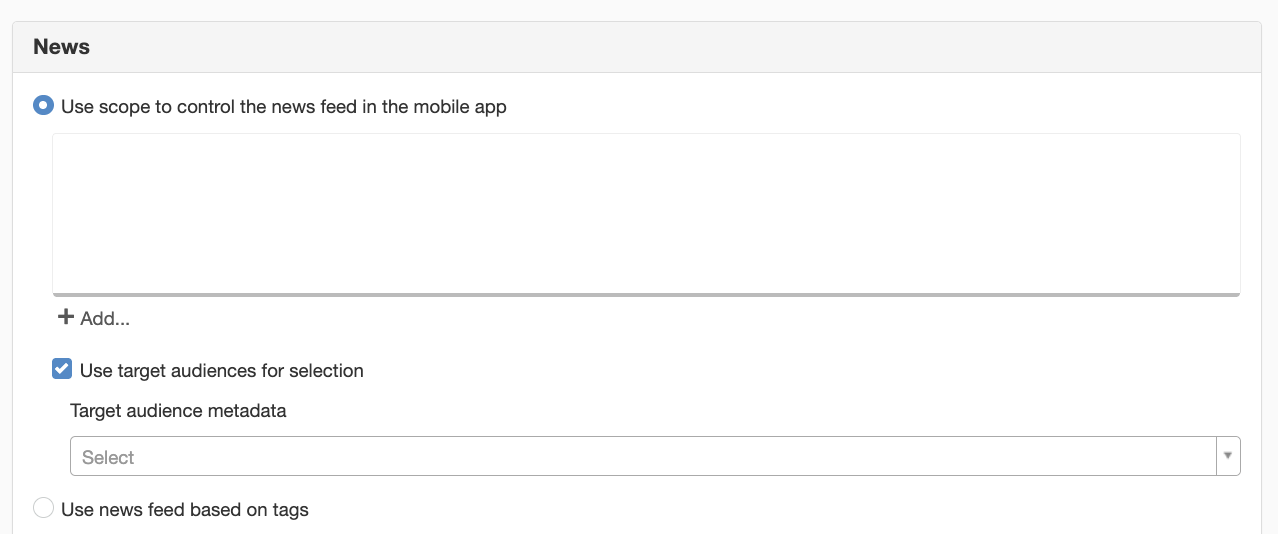
You can now tailor the news feed in the mobile app to specific audiences. Set up a template metadata field for a single audience or multiple audiences and link it to your news template. Then go to “Mobile App” under website settings—there is now a checkbox that allows you to tailor the news items listed in the mobile app to specific audiences. Here, you select a target audience metadata field, either single-select or multi-select. Employees who belong to that target audience will then receive a push notification when a news item is published.
Don't forget that your target audience metadata needs to be indexed
The page published:
 Print page
help.sitevision.se always refers to the latest version of Sitevision