

Channels
The home screen under "Messages" displays both your channels and your most recent direct messages (DMs). If you have unread messages in channels or DMs, they will appear at the top. To search for existing channels, click "All Channels."
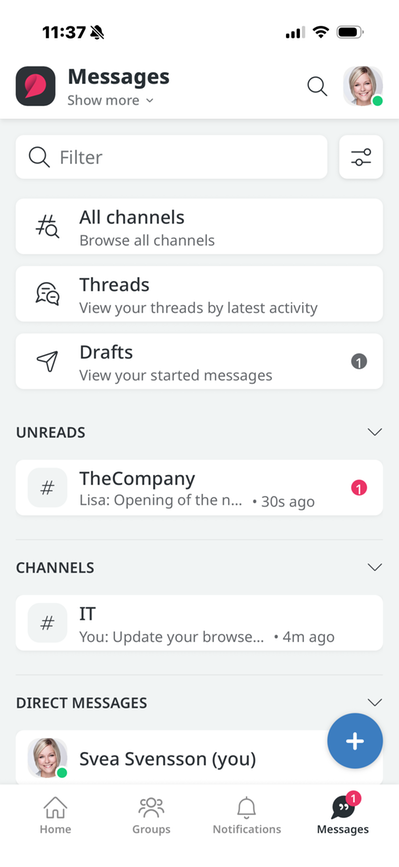
Create a New Channel
To create a new channel, click the blue box with a plus sign. Then select "New Channel."
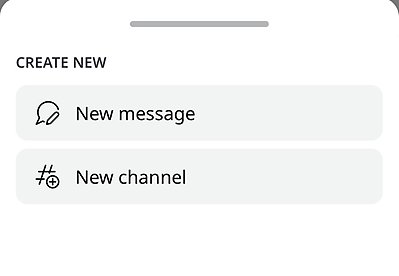
On the next screen, you’ll be able to give your channel a name and a description, and—if you have the appropriate permissions—make the channel private (the "create private channels" permission).
In the next step, you can add members to your channel. You can skip this step. You can also add members later.
Your channel is now created.
By clicking on the two tabs (below the channel name), you can configure the following settings:
- More about the channel - You can Add or Edit description
- Members - See and add members
- Handle channel - Add members and Allow/Enable notifications
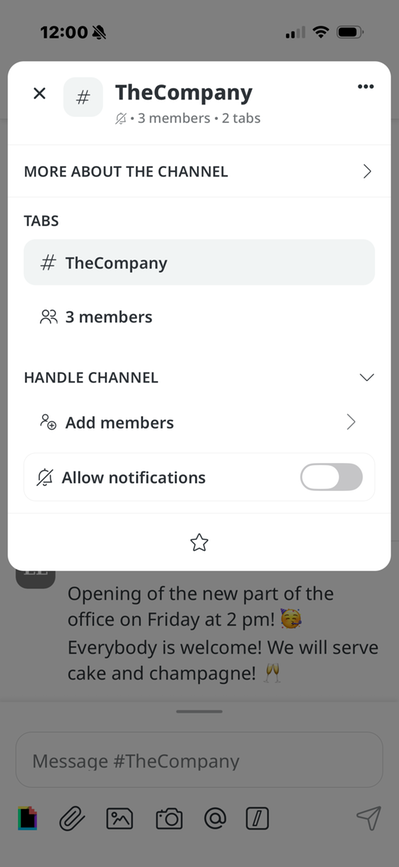
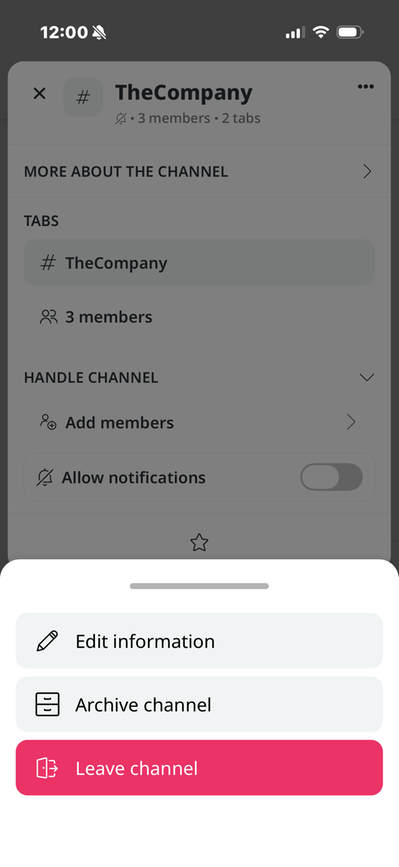
If you click the three dots in the upper-right corner, a few more options will appear:
- Edit information (channel name and description)
- Archive channel
- Leave channel
Posting in the Channel
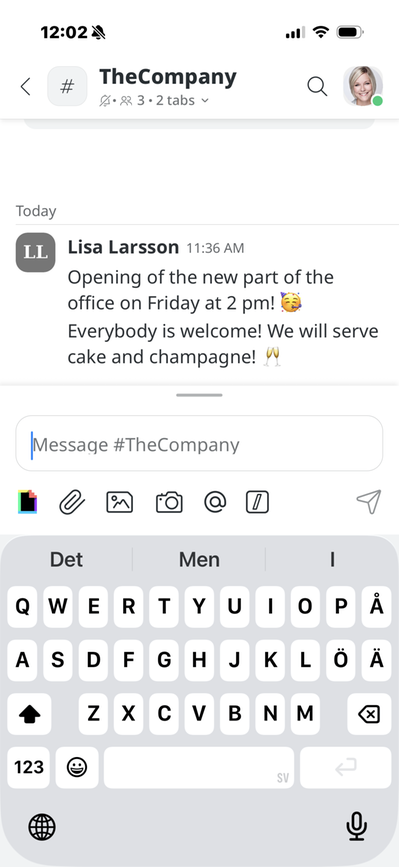
By clicking int the input field at the bottom of the channel, you can post your first message. You can add photos from your albums, open the camera to take a photo or record a video, and use the plus sign to link to files, pages, and more.
The page published:
 Print page
help.sitevision.se always refers to the latest version of Sitevision