

Profile Page
You can access your profile page by clicking on the image at the top and then selecting "View Profile."
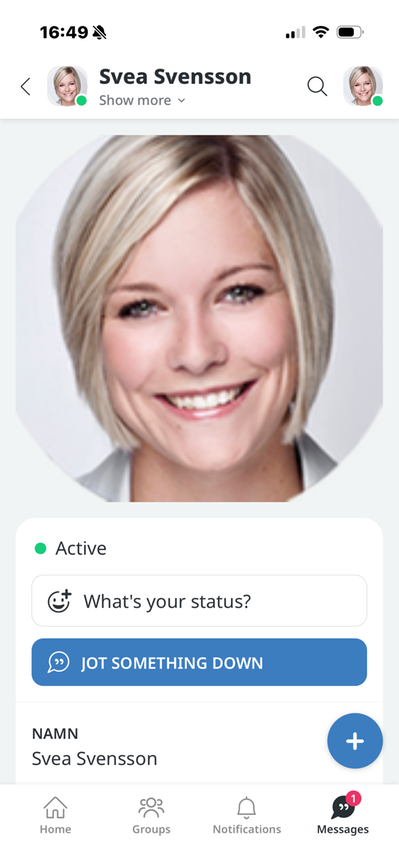
Status
Here you can see your status—whether you’re active or not, and whether you’ve set a specific status. An active user is marked with a green icon. Users who have been inactive for an hour are shown with no color at all—just a transparent circle. If you’ve set a different status, the icon and text from the status template will appear.
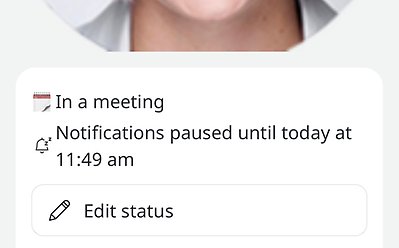
Click "What is your status?" if you want to change your status.
Jot something down
Click on "Jot something down" to send yourself a direct message as a reminder. Here you can also see previous messages you've sent to yourself.
About (your name)
On the profile page, you can find your own profile, which displays your user information in the app. Other users who search for you can also view this information.
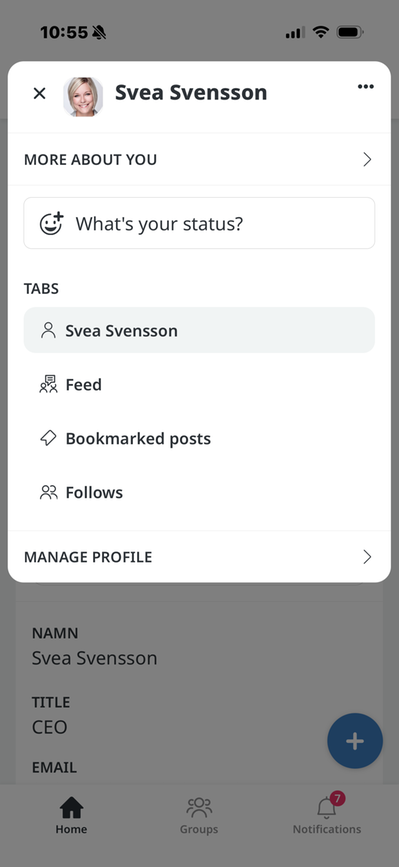
Show more
You can click on the "Show more" text to view additional information.
- More about you—the same information (title, description, and contact details) that you see under "About" (Your name).
- What’s your status?—Takes you to your status settings.
- Tabs—Takes you to information about yourself, your Feed, or Who You Follow.
- (Your Name)—Information about yourself
- Feed - Under the Feed heading, you can see all the specific posts made by you and your colleagues.
- Bookmarked posts - Here you can see all your bookmarked posts.
- Follows—Under the “Following” heading, you can see all the colleagues you’ve chosen to follow. If you want to follow or unfollow a colleague, tap their name and then uncheck the box to follow or unfollow.
- Manage Profile - Here you can change your profile picture by selecting an image or taking a new photo.
The page published:
 Print page
help.sitevision.se always refers to the latest version of Sitevision