

Settings
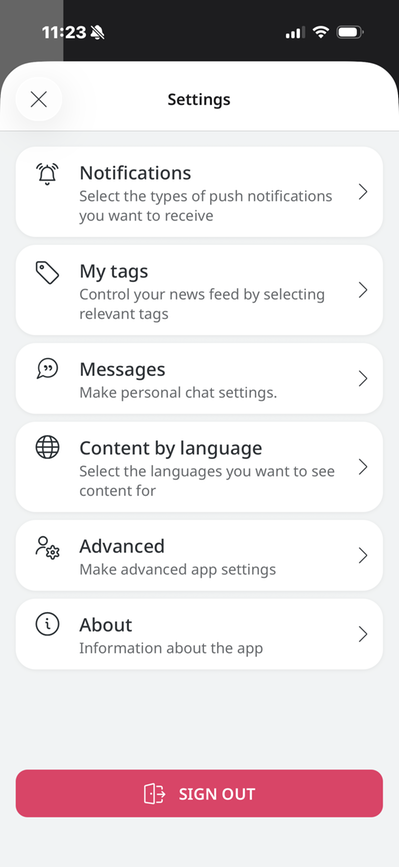
The mobile app's settings include options for configuring notifications and labels. You can also learn more about your version of the app.
Notifications
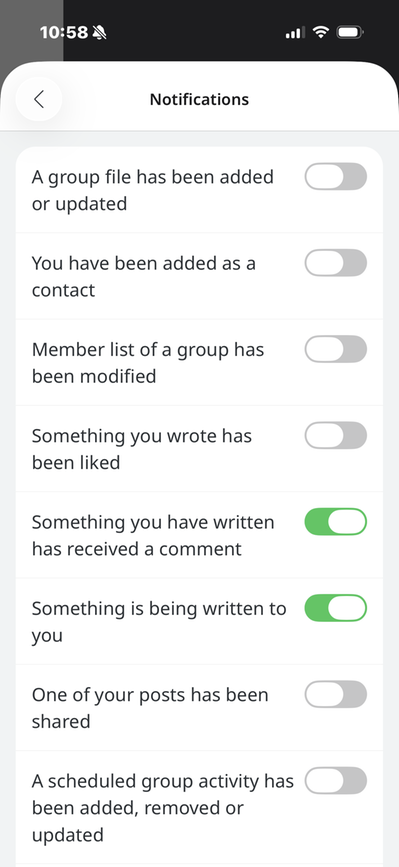
In the app's settings, you can choose which notifications you want to receive on your phone. These settings mirror the settings you configure on the web.
My Tags
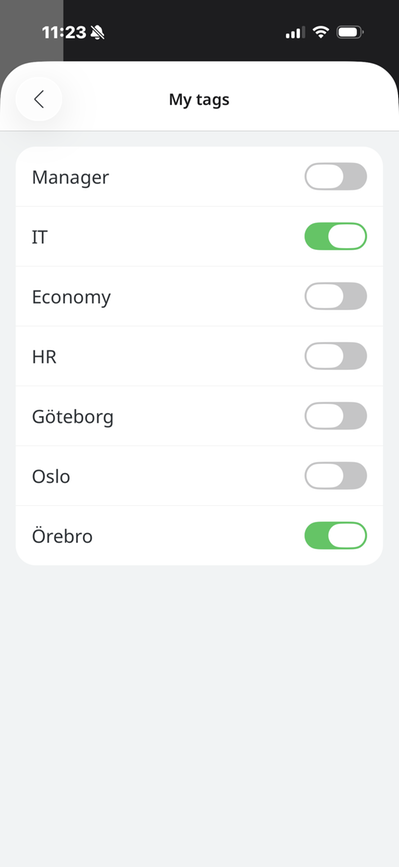
Here, you can also choose which tags you want to follow. These are the tags the organization uses to label its news stories. See here how to set up personalization for news stories
Messages
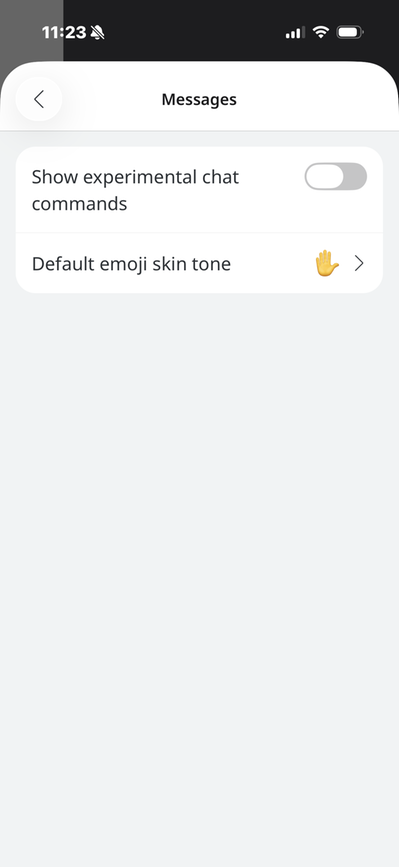
Here you can configure a setting to choose whether you want to display experimental chat commands.
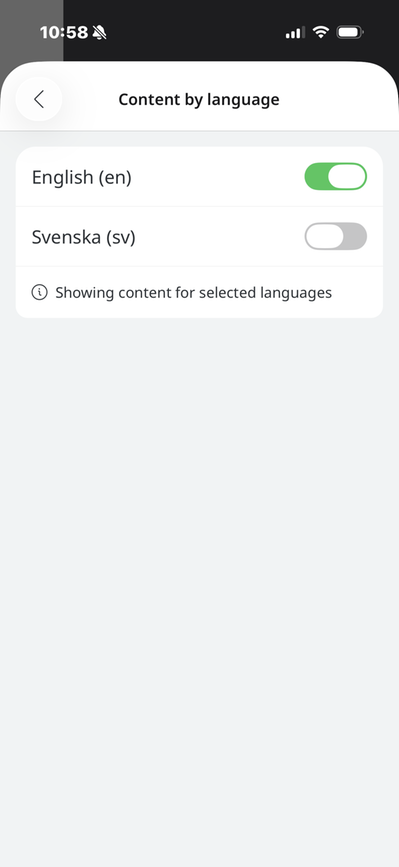
Content by Language
Here you can select the language in which you want to view your content. If the intranet is available in multiple languages, they will be listed here. You can select multiple languages to access more content. If you select Swedish as your language, you’ll see news in Swedish, and when you search, you’ll only get results from pages in Swedish.
This setting is enabled in the mobile app’s REST app, which can be found under “Add-ons” on the intranet.
Advanced
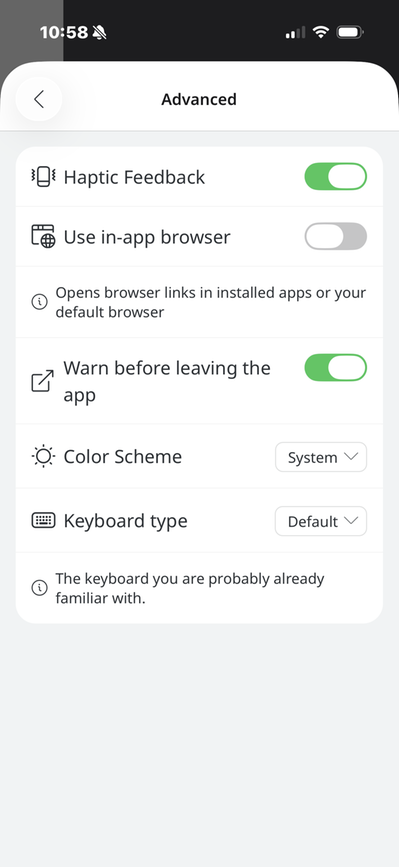
Here you can configure the following settings:
- Haptic feedback - Haptic feedback is when, for example, you press a button on a phone; a slight vibration or a sensation of pressure can simulate the feel of a physical button, confirming that your press was registered. This feature is enabled by default.
- Use in-app browser - Opens external links in installed apps or in your default browser.
- Warn before leaving the app—If you want users to receive a warning when they leave the app, for example, to open an external browser.
- Color Scheme—Here you can choose between a light or dark color scheme on your phone.
- Keyboard type — Here you can choose between the default or Twitter keyboard. The default is the standard keyboard, while the Twitter keyboard has @ and # buttons readily available.
About
Here you can see which intranet you're logged into, check which app version is running, view the privacy policy, and access support
The page published:
 Print page
help.sitevision.se always refers to the latest version of Sitevision