

How to use Timeline

Attach file or image
If you click on attach files, you can upload files and images to your post. Below you can see the difference between uploading images and how they appear when you post them in your post.

Så här ser det ut när du väljer dina filer
Use emojis
You can select emojis in the activity feed.

Using GIFs
You can add a GIF to your post. To do so, click on the GIF button.

If you want to use GIFs in your feed, you must add a GIPHY API KEY in the module. You can do this under Add-ons/"web app activity feed"/Global settings.

Mentions
If you want to mention other people (who are on your intranet) in your posts, type @ followed by the first letter of their name. For example, if you type @and, you will see examples of names that start with and.
If there are several Anders Anderssons, their email addresses will also be visible to distinguish between the users.
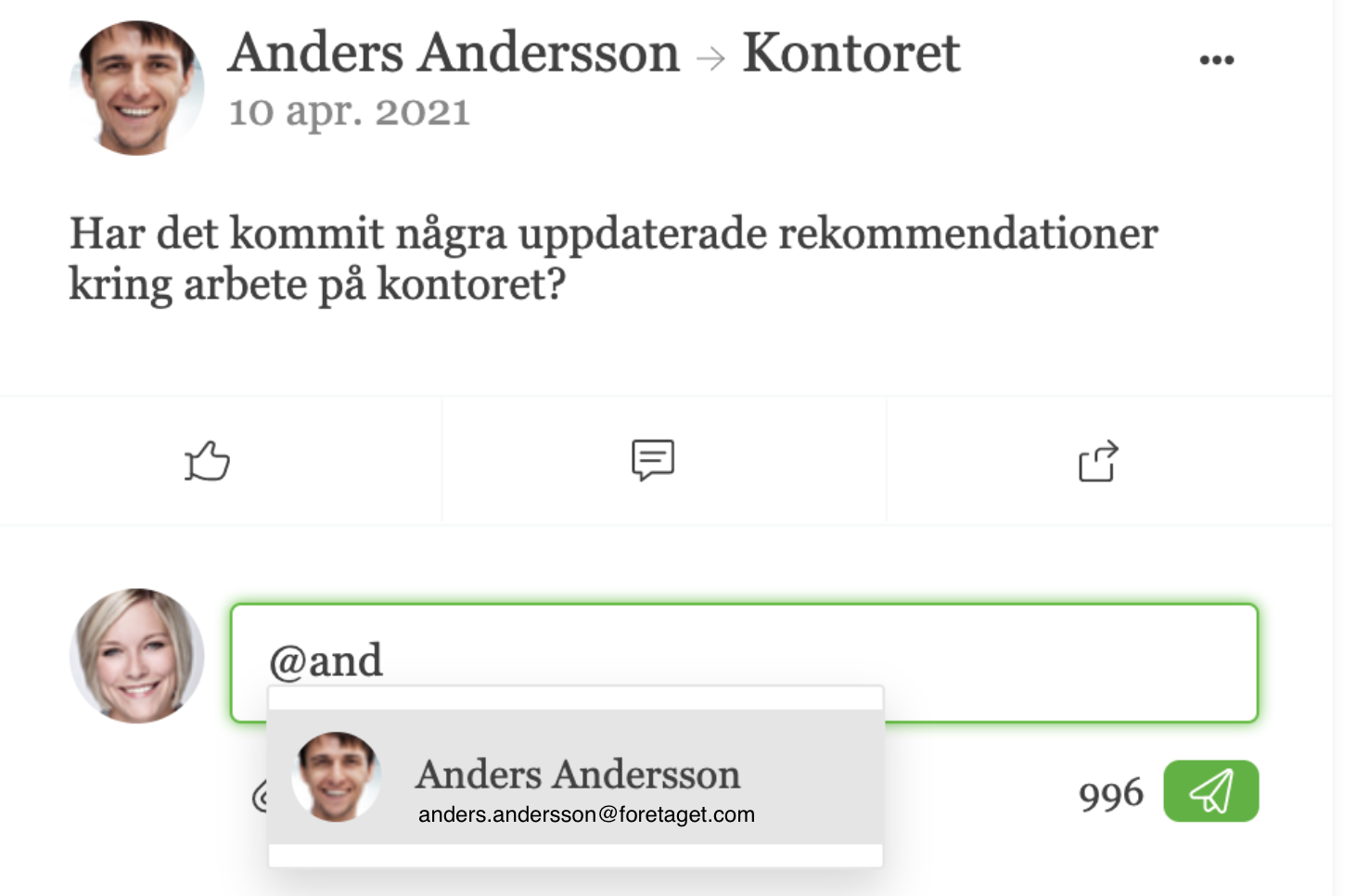
Select Anders by clicking on the name. After you click send, the comment will look like this:
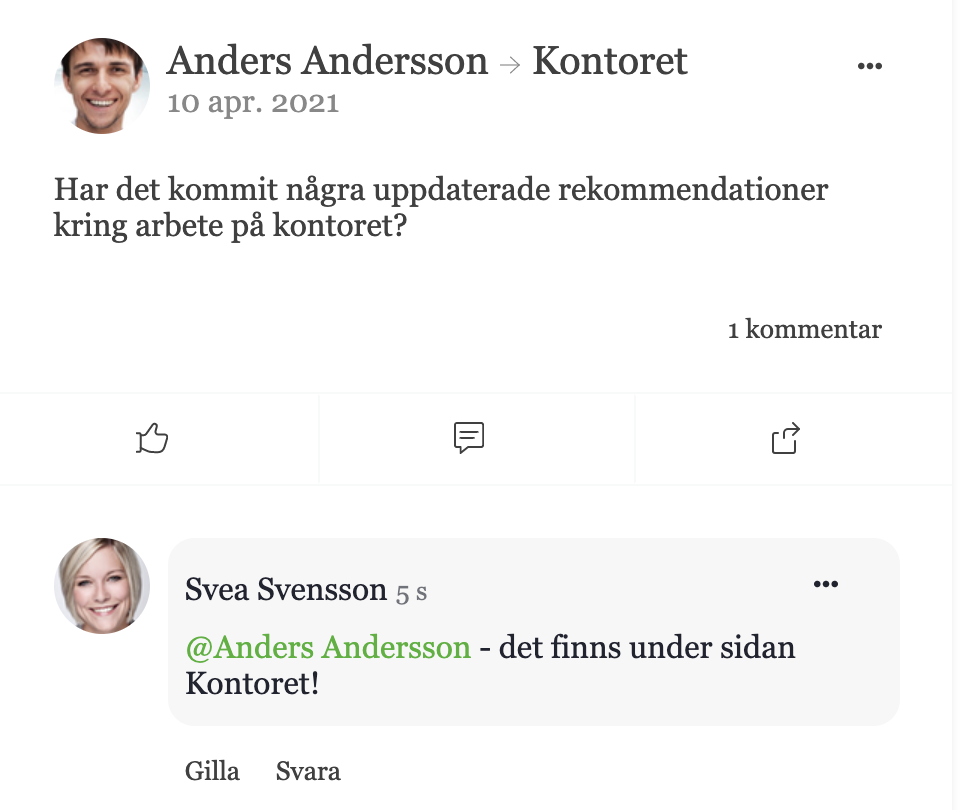
You can make mentions in posts, comments, and replies.
Create a poll
This is what polls look like when you use the activity stream. You can write your question, add answer options, and decide how long the poll should be active.
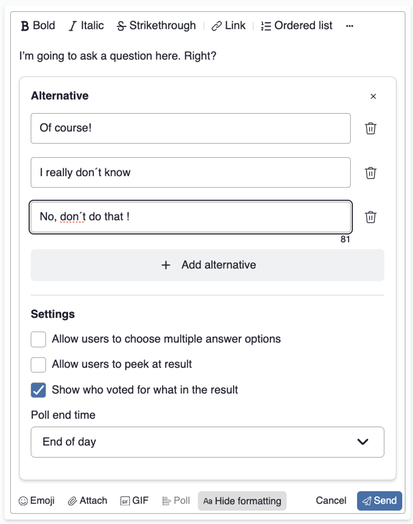
Type your question in the text box.
Answer Options
By default, two answer options are displayed. If you want more options, click “+ Add Alternative” to add them. You can remove the options you’ve added by clicking the trash can icon to the right of the option.
Settings
Allow the user to select multiple answer options
Check this box if you want visitors to be able to select more answer options.
Allow users to peek at the results
You can also allow users to preview the answers before they vote themselves. This shows how visitors have voted as a percentage, but not who voted for what.
Show who voted for what in the results
Use icons to show who voted for what in the results.
Poll End Time
You can also set an end time for the poll. You can choose from:
- In one hour
- End of the day
- End of the week
- Select a date and time
You can also set how long the poll should remain active.
This is what a completed vote looks like for the user
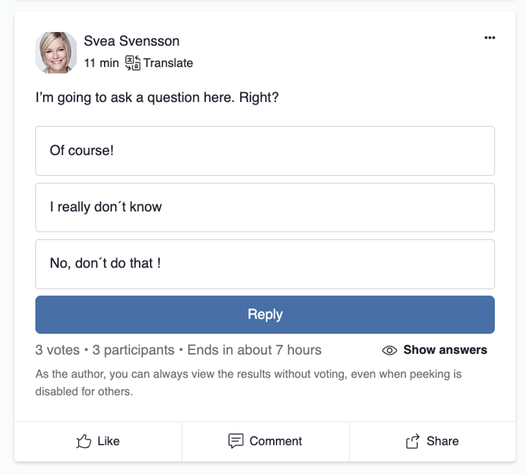
What a poll looks like to the user
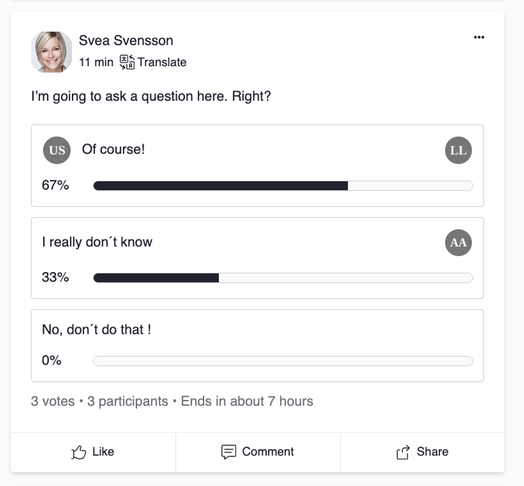
What a poll looks like after a user voted
Help menu in the Activity Feed
Once a post has been published, you can manage it in the following ways, depending on whether you created the post yourself or depending on your permissions:

Comment, like, and share
You can comment on a post, like a post, or share a post. You can also like and reply to comments that have already been written.

Support for Open Graph
The activity feed supports displaying an embedded link using Open Graph metadata. If you write a link in the post, a preview of the link will be displayed directly in the feed.

Ability to write your own links
You can also write your own links in the activity stream. Here's how: [Look here, a link to Sitevision](https://www.sitevision.se)

Denna sida publicerades:
 Skriv ut sida
help.sitevision.se hänvisar alltid till senaste versionen av Sitevision