
Timeline
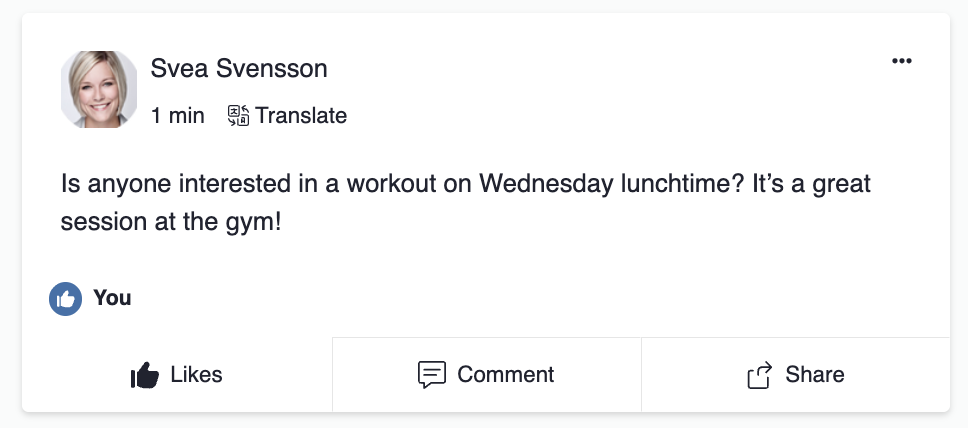
The Timeline module allows you to display posts from groups or contacts. The module is used, for example, on the home page of an intranet or on a group page - places where you want to collect posts from different people.
Posts
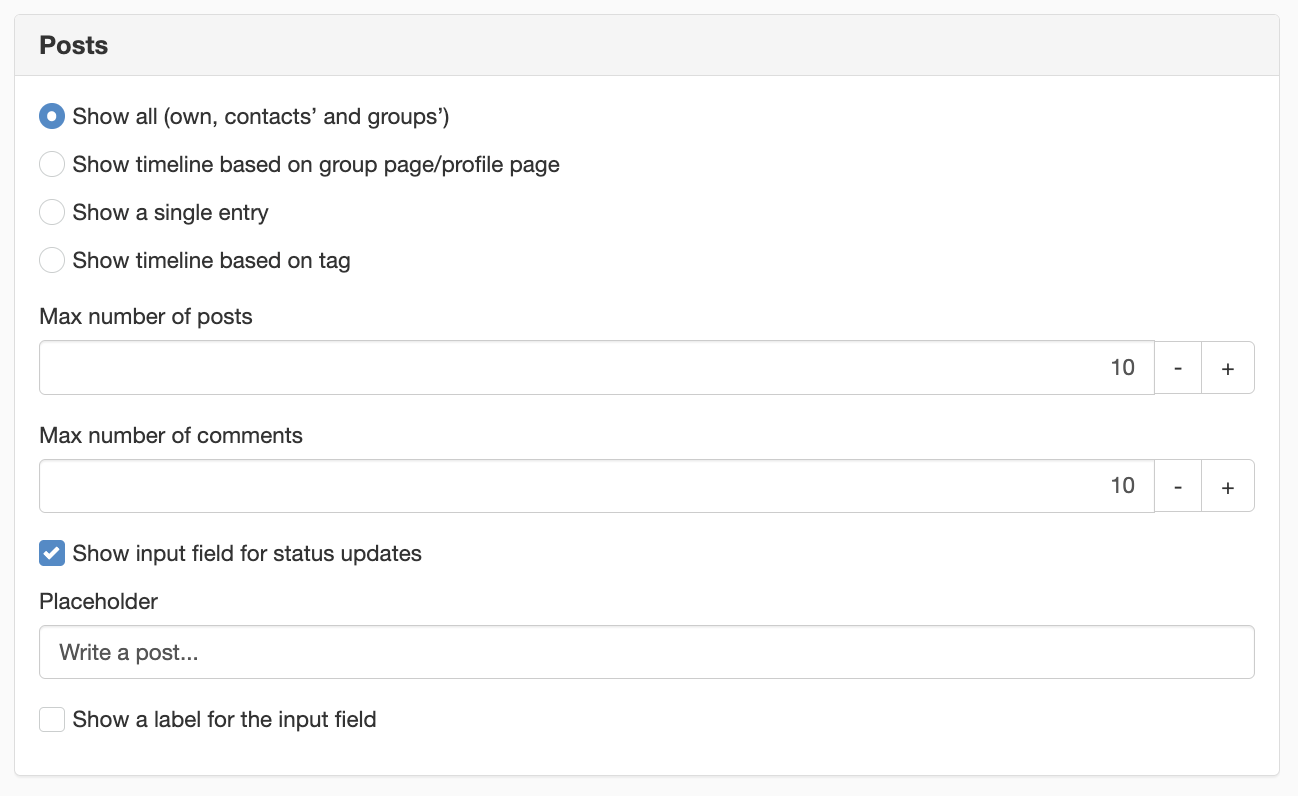
Show all (own, contacts‘ and groups’)
This option is the default setting. It shows status updates for all contacts and groups of the user. This setting is often used, for example, on the home page of an intranet.
Show timeline based on a group page/profile page
This option shows posts specific to the current page. This setting is often used when the module is added to the template for profile and group pages.
Show a single entry
Are you mentioned in a post and receive a notification? Click on the note and the post opens up in a new view. Only the selected post is shown.
Show timeline based on tag
This option is used to display posts and comments ‘tagged’ with a specific label. When a post or comment is ‘tagged’, a copy of the post is placed in an activity stream linked to the label.
Max number of posts
Set the number of posts to be displayed in the activity stream by entering a number. The default setting is 10.
Max number of comments
Set the number of comments to be displayed in the activity feed by entering a number. The default setting is 10.
Show input field for status updates
Tick ‘Show input field for status updates’ to allow users to write updates in the module.
Placeholder
Enter some text to appear in the input field. The text disappears when the user clicks in the field. The default text for the placeholder is "Write a post...".
Show a label for the input field
Tick this box if you want a label to appear before the input field. Under ‘Label’, enter the text you want the label to say. The default setting is ‘Write a post’.
Settings
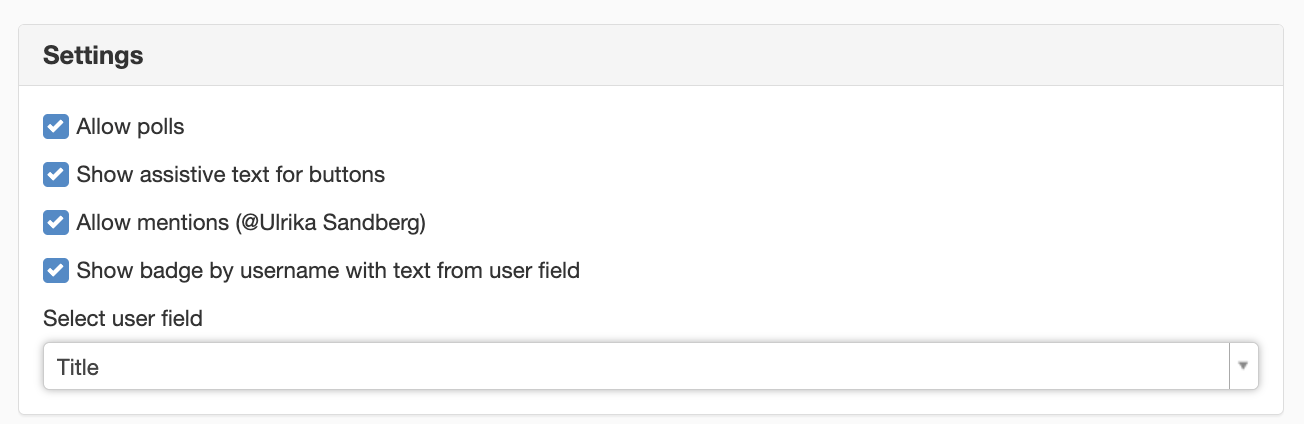
Allow polls
You can now allow polls in the activity stream. By clicking on the box, users have the option to start a poll in a post.
Show assistive text for buttons
Do you want assistive text for your icons? By checking the box for assestive text, it will be displayed to the user.

Allow mentions (@name)
Here you can choose whether to allow mentions in the timeline.
Show badge by username with text from user field
Here you can add some information about the user who made the post. If you’re part of a large organisation, several people may have exactly the same name. In that case, you can add a user field such as title or email. Tick this box if you wish to use it and select which user field you want to display.
Image settings
Under image settings you can choose whether to display the images in their original size or customize the size in width and height.

- Keep original size - if you want to keep the size of the original image.
- Adjust size - Customize the size by specifying the maximum width of the image.
- Limit visible height - Check this if you want to specify the maximum height.
Target pages
Under target pages, set the tareget pages that you want the system to use.
- Use a custom profile page to display information about users - here you set what should happen if you click on the profile picture. Then you want to go to the profile page.
- Use a custom page to show the timeline for a tag - here you set what happens if a label is clicked. Then you want to be taken to a page that shows all posts with this label.
- Use a custom page to show all timeline posts - here you set what happens when you click on the date, then only that post is shown.
- Use a custom page to show all file details - this is where you set up a page that contains an All Files module.

Appearance
Here you set how the Show more posts button should appear.

Button to show more posts
Variant
Here you can choose one of the following:
- Button
- Ghost button
- Link button
- Text link
Color
You can select the following under color, if you have selected Button or Contour button:
- Default - takes Default background color from Element colors in theme
- Brand color - takes profile color from theme
- Primary - takes Primary color from theme
- Secondary - takes secondary color from theme
Size
The following sizes can be selected on the button:
- Large
- Default
- Small
- Slim
Badge next to the user’s name
Colour
You can choose from profile colours taken from your theme.
Profile colour
Profile colour 10
Profile colour 30
Profile colour 50
Accessibility
Base heading level
To enable you to have correct heading levels in the module, we have added an h2 as the default heading level. Here you can change this to suit your design and get the right heading level. It is possible to change everything from h1-h6 to be able to match the correct heading level in the activity flow.

Translations
Let your visitors translate the posts in the activity feed by turning on the feature in the Global Settings. You can find them in the ‘Activity Feed web app’ add-on and in Global Settings.


For example, the color of the background, text and border is controlled by your Envision theme.
If you have not set up an Envision theme, the default settings are used. To set up a theme, go to Site Settings -> Appearance -> Theme.
This is a module from Sitevision Marketplace. To download it, go via the menu in the navigator -> Marketplace in the edit mode of your website.
The page published:

help.sitevision.se always refers to the latest version of Sitevision