
Intranet search
With Intranet search, you get a multi-faceted search module that quickly helps you sort, categorize and find what you are looking for. The module shows your hits based on Top Hits, Content, Documents, People, Entries and Groups.
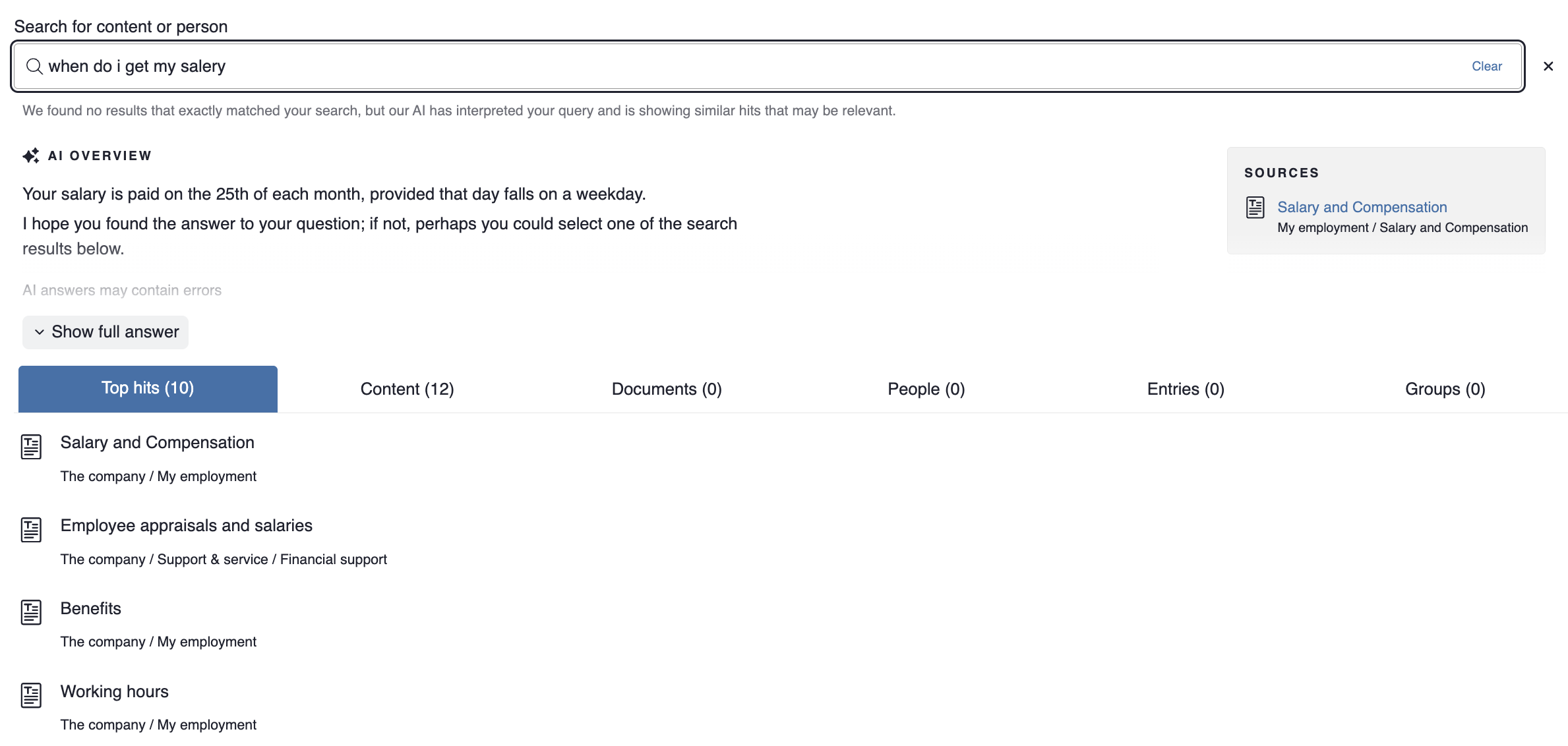
If you have enabled AI, an AI overview will appear at the top if you type more than two words in the search box.
Du kan också målgruppsanpassa sökresultaten i modulen Intranätssök. Genom att filtrera eller prioritera sökträffar utifrån målgrupper kan du skapa en mer relevant sökupplevelse för användarna.
Search index
Use custom search index
If you have the Search Advanced search package, you can use your own custom search index. Check the box and choose which index you want to use in the module.

Search field

Input label
If you check this, a label text is printed in code mode (not visible on the web page).
Show label above search field
If you also want the field label to be printed visibly above the search box, check this option.
Placeholder
Here you decide what you want the search box to say before the search starts. The default text is "Hi, what are you looking for?"
Show icon in search field
If you want to show the icon (magnifying glass) before the placeholder, check this box.
Display clear button
If you want to display a Clear link in your search result, check this box.
Placement of the search box
Display search results at the top of the page
Check this if the search box should be in the page header. This is to ensure that the search results are displayed correctly.

Integrations
You can use the SharePoint Search Integration to list search results from SharePoint. You can also create and add your own integrations. By adding custom integrations, you can extend the Intranet search to include external sources. For more information on how to build integrations, visit our developer site.

Search results
Max number of hits
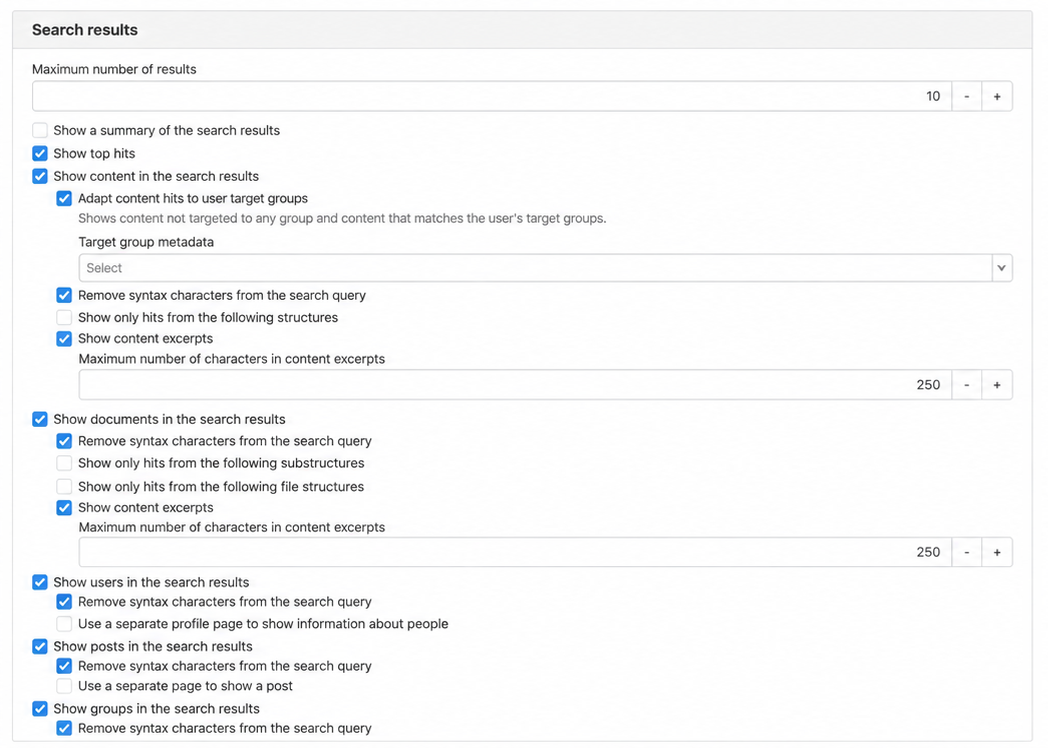
Set the number of hits to be displayed under each category. The default setting is 10 hits. If there are more hits than you selected, a button will appear at the bottom with the text "Show more".
Show search results summary
Check this if you want a summary of your search results in text.
Show top hits
Select whether to show the top hits category in the module.
Show content in search results
Select whether to show the category Content in the module.
- Adapt content hits to user target groups – Select this option to tailor search results to the user's target groups. The search results will then show content that is not assigned to any target group, as well as content that matches the user's target groups. Select which target group metadata to use for filtering.
- Show content in search results - Select whether to show the content category in the module.
- Remove syntax characters from search query - Check this if you want to remove * in the result. E.g. car*, the * will not be included in the result view.
- Restrict which structures to include in the search - Select which parts of the intranet to include in the search. By default, the whole intranet is included.
- Show hit extracts - Select this if you want extended information about your search hits.
- Maximum number of characters in hit extract - Here you set the maximum number of characters to be displayed in the hit extract.
Show documents in search results
Select whether the category Documents should be displayed in the module.
- Remove syntax characters from the search query - Check this if you want to remove * in the result. E.g. car*, the * will not be included in the result view.
- Restrict which page structures to include in the search - Select which parts of the intranet to include in the search. By default, the whole intranet is included.
- Limit which file structures are included in the search - Select which parts of the file archive are included in the search. By default, the entire intranet is included.
- Show hit extracts - Select this if you want extended information about your search hits.
- Maximum number of characters in hit extract - Here you set the maximum number of characters to be displayed in the hit extract.
Show people in search results
Choose whether to show the category People in the module.
- Remove syntax characters from the search query - Check this if you want to remove * in the result. E.g. daniel*, the * will not appear in the results view.
- Use a custom profile page to display information about people - A page that displays search results with people.
Show entries in search results
Choose whether to show the category Entries in the module.
- Remove syntax characters from search query - Check this if you want to remove * in the result. E.g. summer*, the * will not be included in the result view.
- Use a custom page to display an entry - A page that displays a post from a group.
Show groups in search results
Select if the category Groups should be displayed in the module.
- Remove syntax characters from the search query - Check this if you want to remove * in the result. E.g. sitevision*, the * will not be included in the result view.
Enable Audience Targeting
Check this box if you want to tailor the search results to the user’s target groups. The search results will then display content that is not tailored to target groups as well as content that matches the user’s target groups.
Audience Metadata
Select which audience metadata to use for filtering.
Tabs to be segmented
Here, you select which tabs to target. Check the ones you want to use. Currently, you can select Content and Documents.
AI

Use AI overview
Choose whether you want to use AI overview in your searches. With AI overview, you get a summarized AI response to your search query, in cases where AI has an answer. AI overview is triggered when you type two or more words.
AI Overview is linked to an Assistant based on one of your set knowledge bases.

Denna funktion kräver att du har licensen AI Advanced/ AI Enterprise.
Use AI support for search
If you don't get any hits for what you're searching for (at least 5 characters), AI steps in and comes up with alternatives for your search. For example, if you search for "Hat" and get 0 hits, a new search is performed based on AI-generated suggestions such as "Cap," "Beanie," etc.
Denna funktion kräver att du har licensen Sitevision intranät 2022 eller AI Advanced/Enterprise.
This feature requires you to have the " Sitevision intranet" permission
This is a module from Sitevision Marketplace. To download it, go via the menu in the navigator -> Marketplace in the edit mode of your website.
The page published:

help.sitevision.se always refers to the latest version of Sitevision